Không nhận được email
(ENGLISH BELOW)
Trường hợp 1: Sai địa chỉ email hoặc chưa cung cấp địa chỉ email khi đăng ký
Vui lòng liên hệ tới ban tổ chức và cung cấp các thông tin bên dưới để cập nhật lại địa chỉ email chính xác/mới.
Thông tin cung cấp gồm:
- Tên sự kiện
- CCCD
- Số điện thoại
- Email chính xác/mới cần cập nhật
Trường hợp 2: Đã nhập đúng thông tin email khi đăng ký
Vui lòng tìm email ký e-waiver được gửi từ email: no-reply@racetime.vn và kiểm tra hòm thư Spam hoặc hòm thư Quảng cáo
Trong trường hợp email của tôi hợp lệ và bạn không nhận được email ký miễn trừ trách nhiệm từ RaceTime (hoặc BTC). Bạn thực hiện như sau:
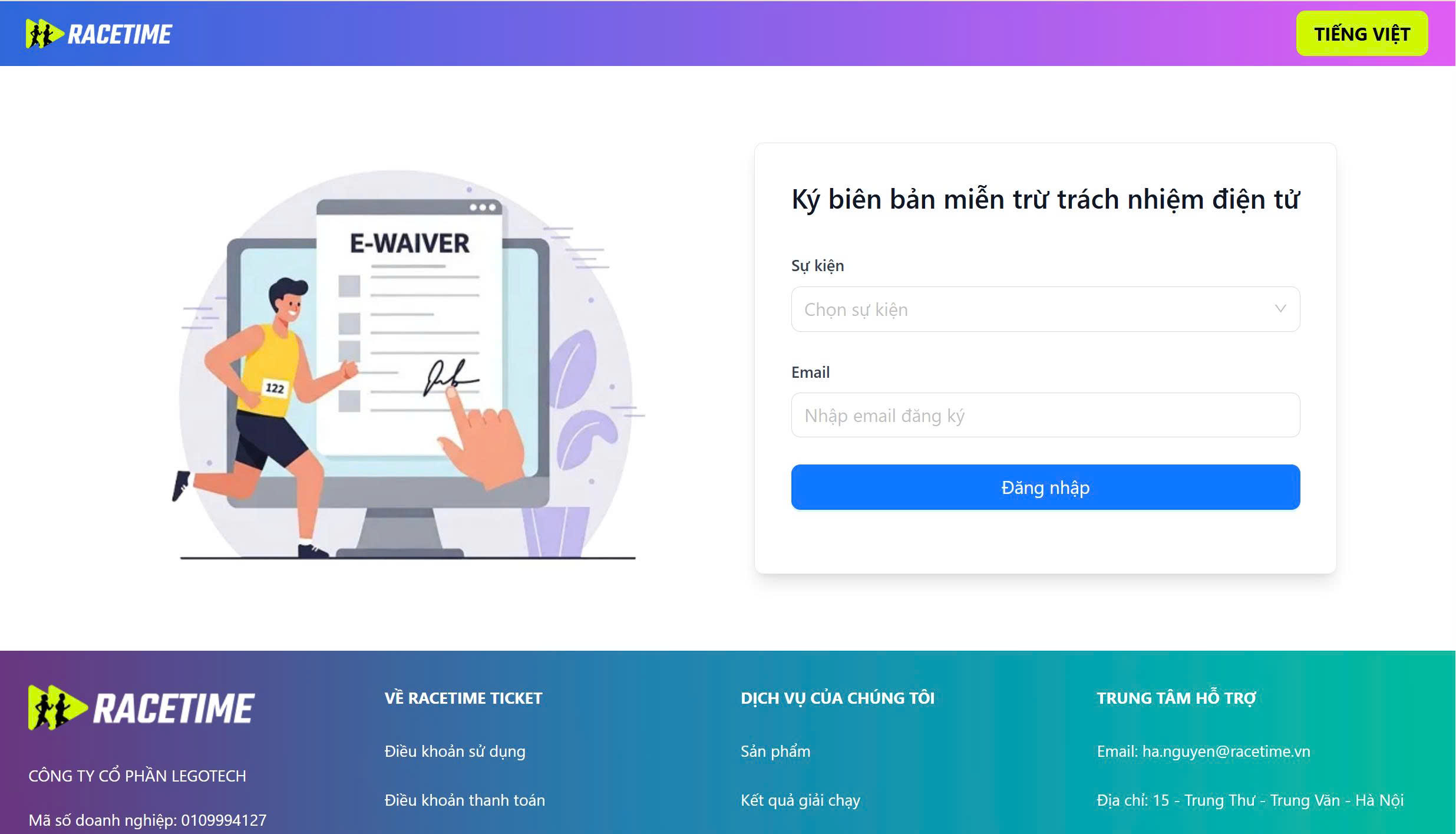
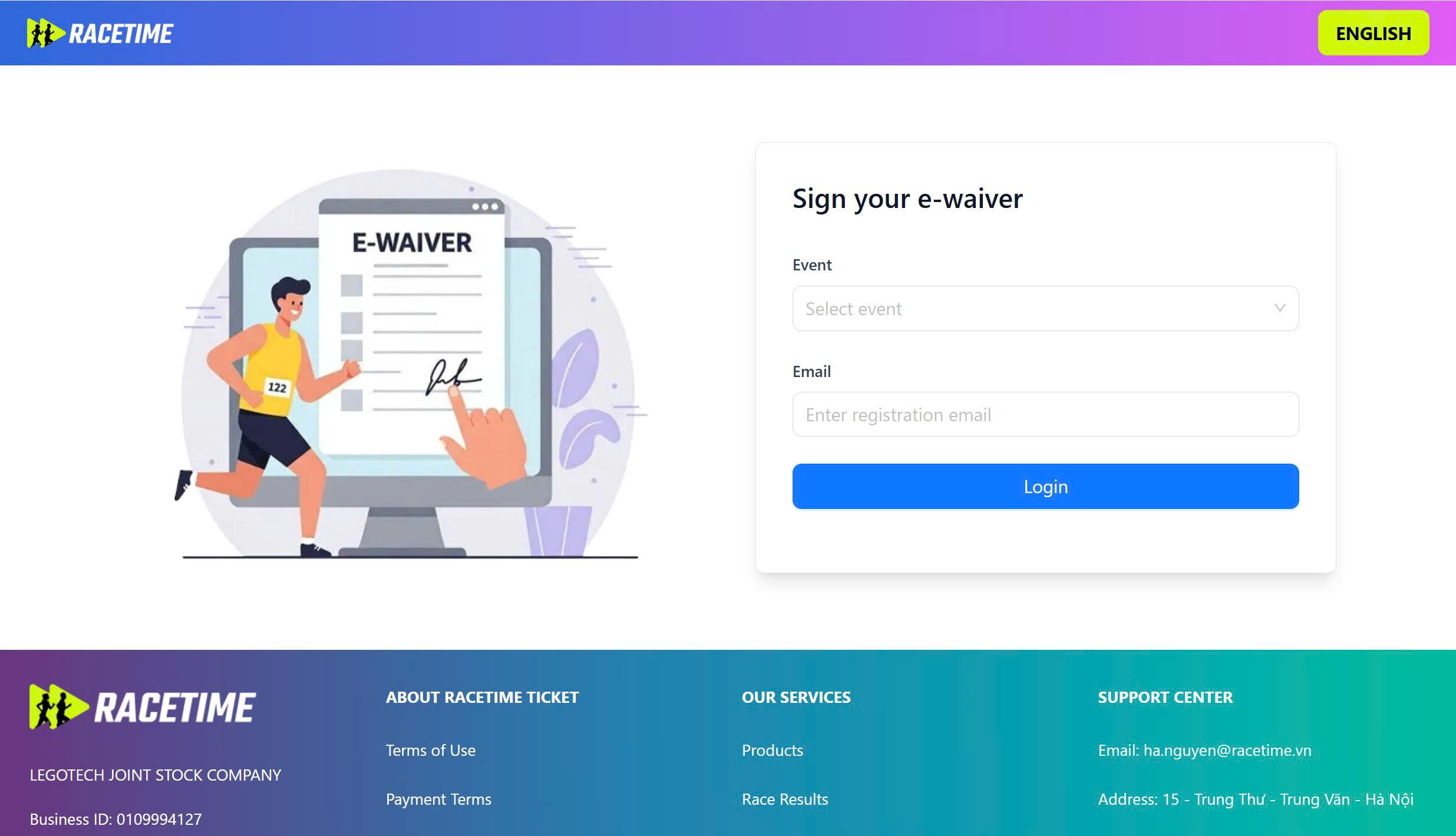
Bước 1: Truy cập vào link “https://ewaiver.racetime.vn/”
Chọn sự kiện, nhập email đã đăng ký và nhấn "Đăng nhập"
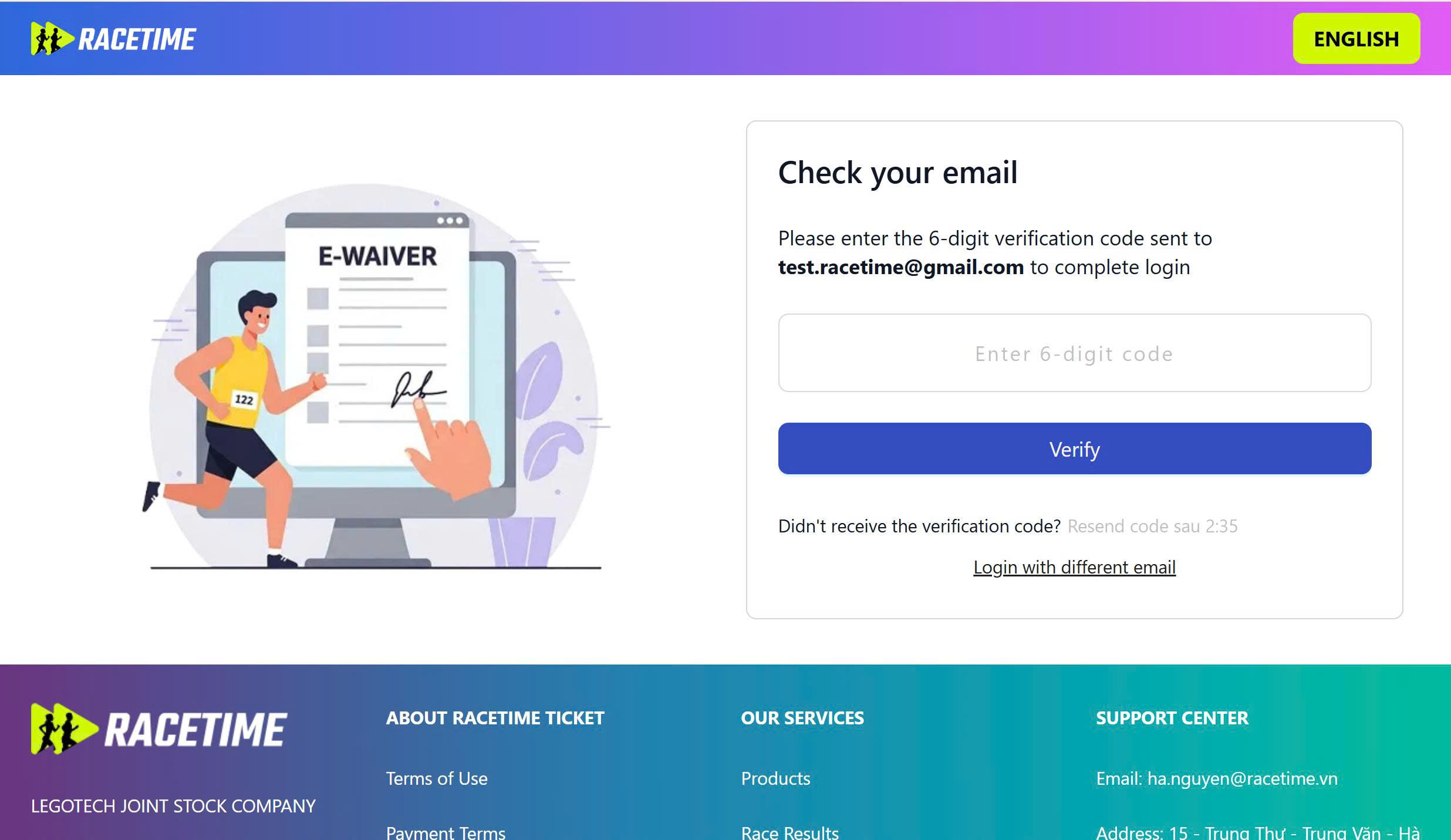
Mã OTP sẽ được gửi về Email của tôi đã đăng ký sự kiện trong ít phút.
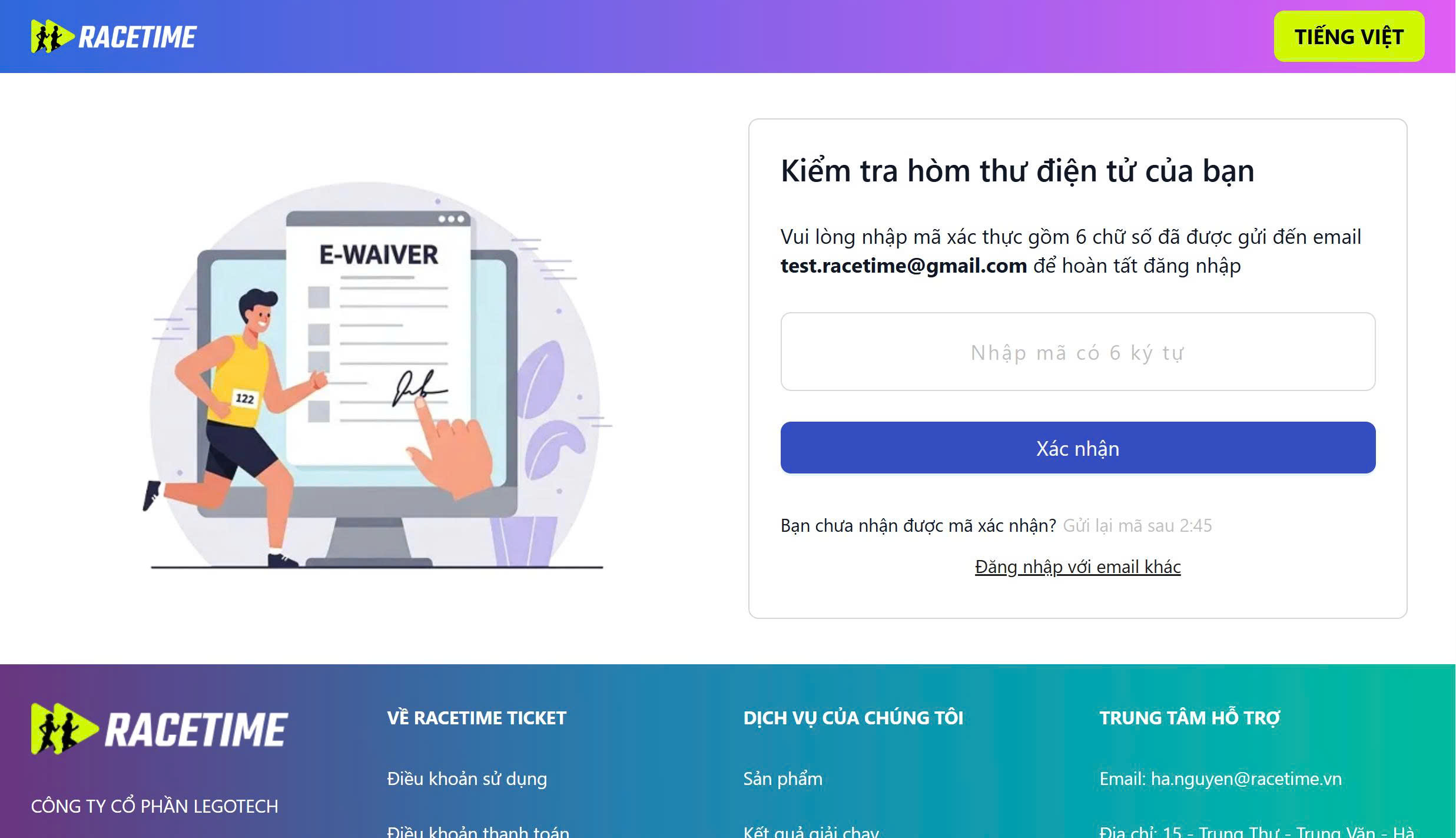
Bước 2: Kiểm tra email, nhập mã OTP đã nhận lên hệ thống và bấm "Xác nhận"
Lưu ý:Mã OTP có hiệu lực trong 5 phút, sau 5 phút nếu chưa xác thực OTP, bạn có thể bấm "Gửi lại" để nhận mã OTP mới.
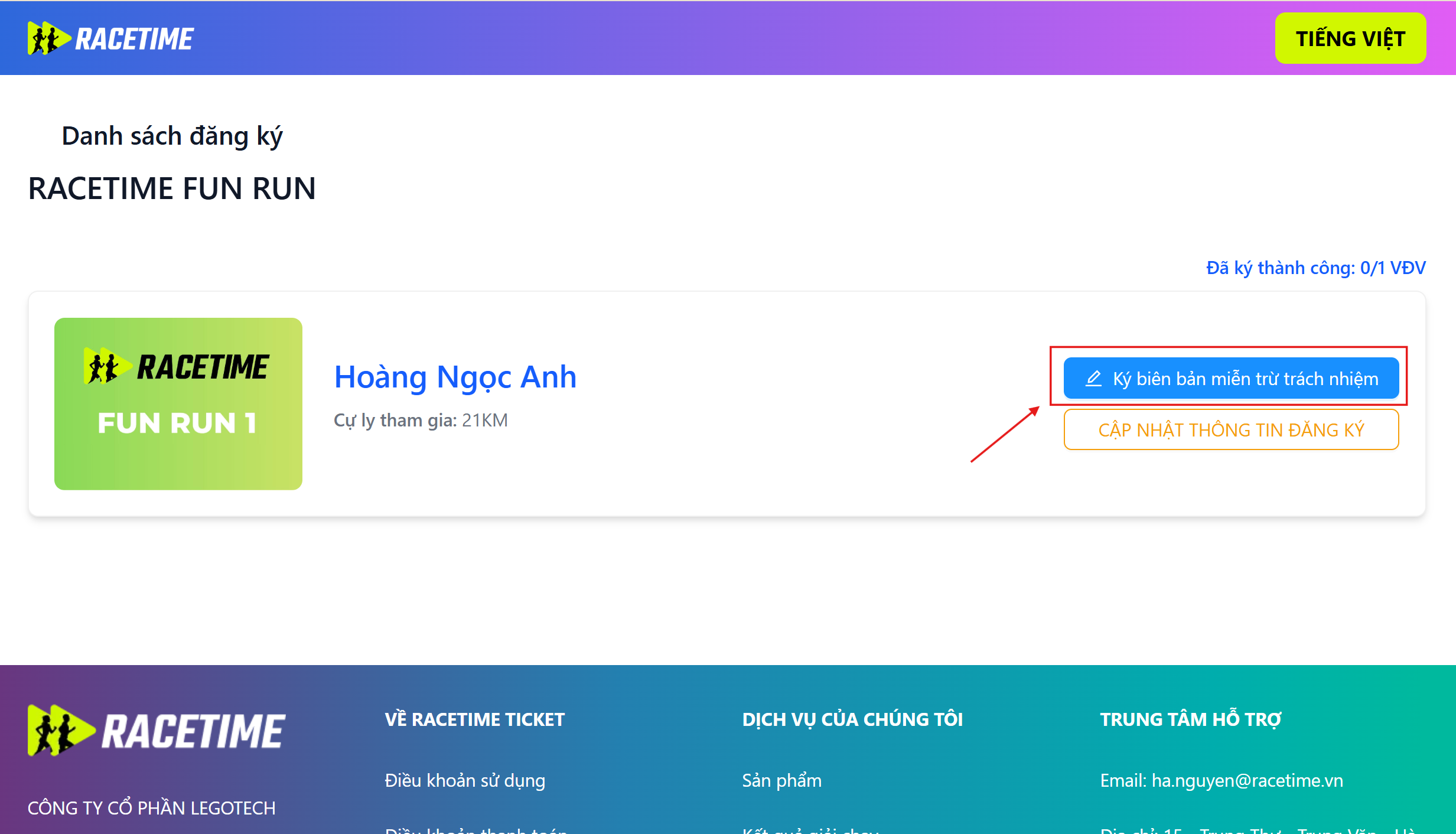
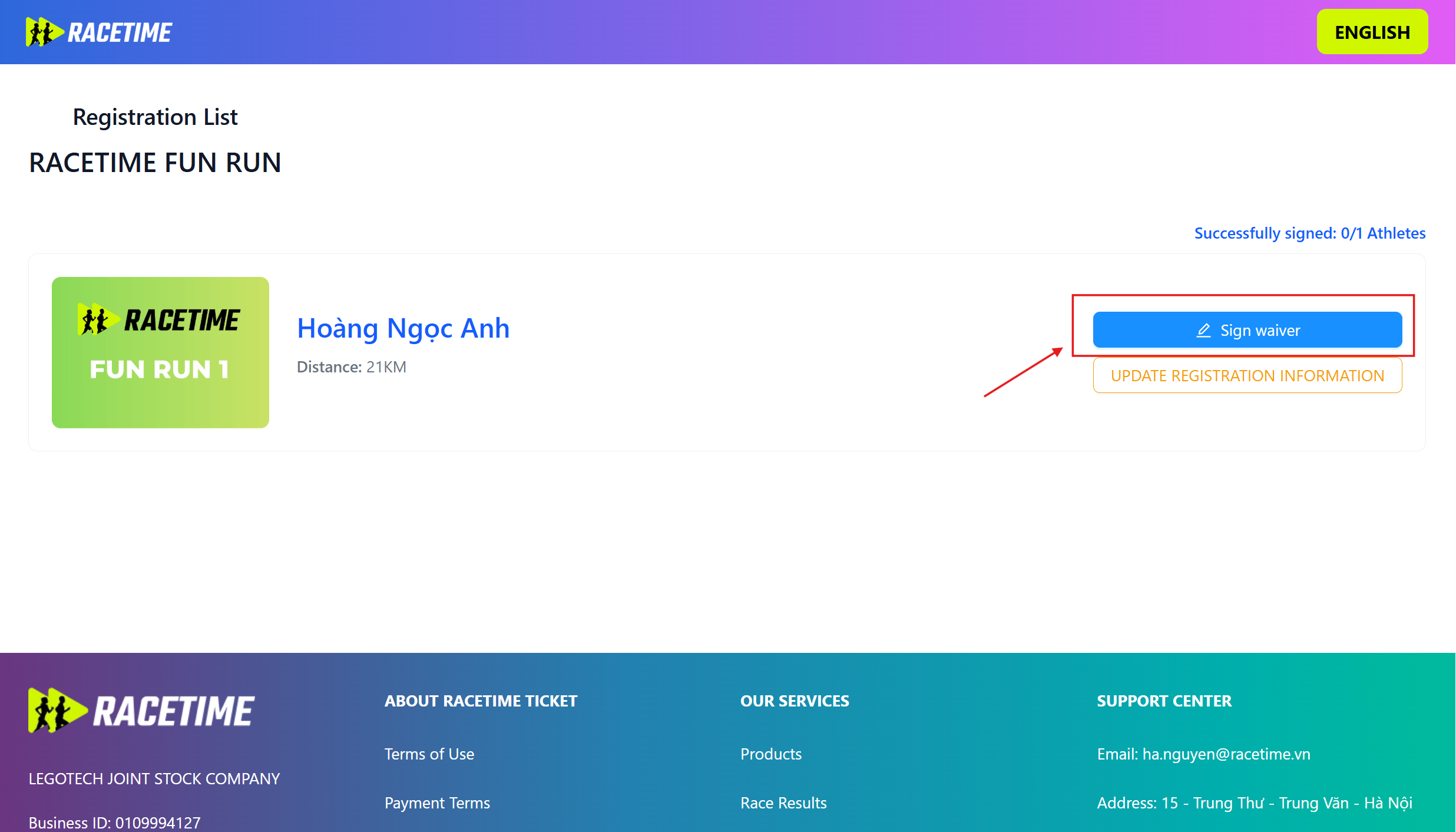
Bước 3: Sau khi đăng nhập thành công hệ thống hiển thị danh sách vé đã đăng ký Bấm chọn “Ký biên bản miễn trừ trách nhiệm”, hệ thống điều hướng đến màn ký e-waiver
(Trường hợp một email đăng ký nhiều vé trong sự kiện thì màn hình sẽ hiển thị số lượng vé tương ứng)
Bước 4: Kiểm tra thông tin người tham dự
Lưu ý: Nếu thông tin của tôi chưa chính xác vui lòng liên hệ ban tổ chức hoặc quầy thông tin tại sự kiện để được hỗ trợ!
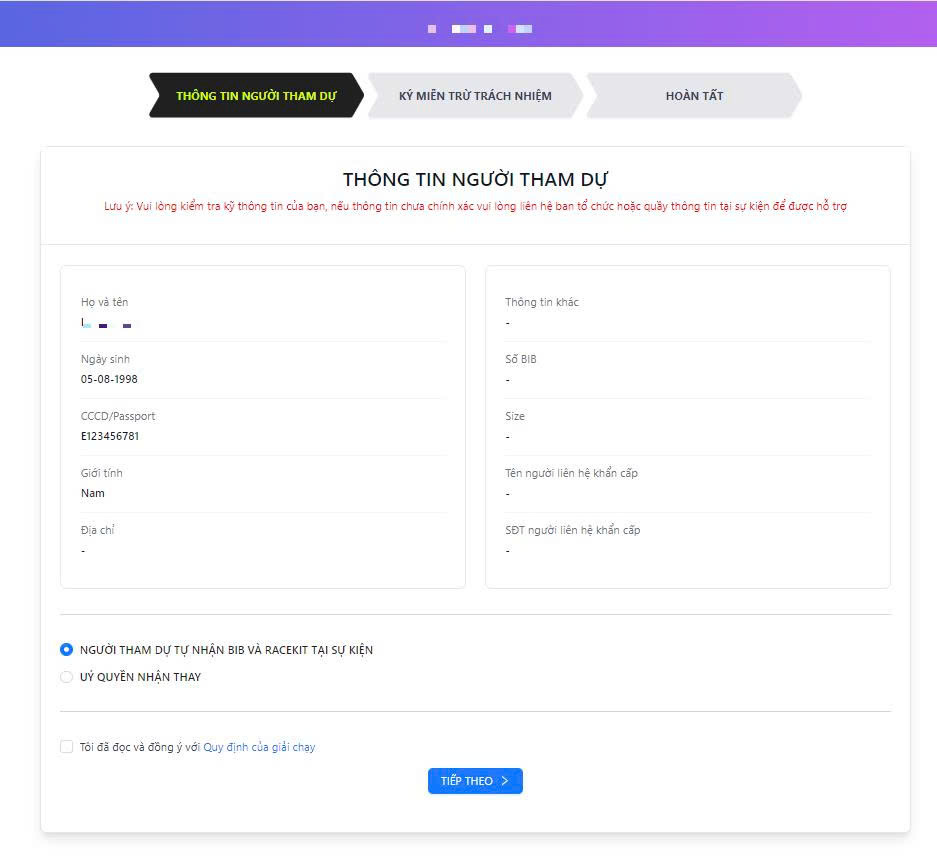
Bạn vui lòng chọn hình thức nhận racekit:
- - Người tham dự tự nhận BIB và RACEKIT tại sự kiện
- - Uỷ quyền nhận thay: Nhập thông tin người được uỷ quyền
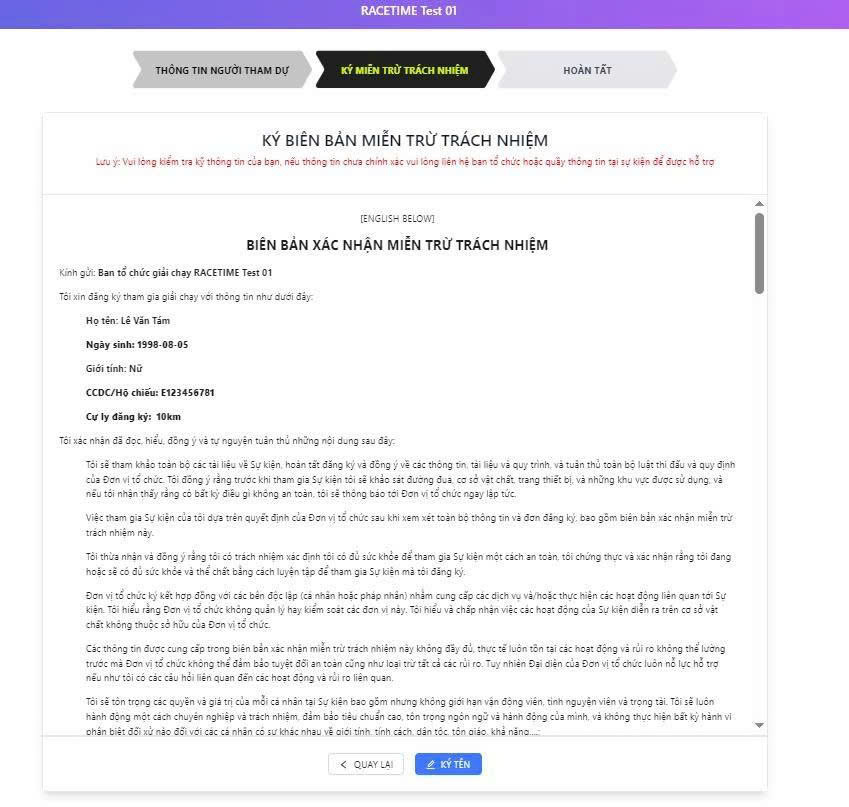
Bước 5: Đọc biên bản miễn trừ trách nhiệm và ký xác nhận
- Thông tin người tham dự đã được điền vào biên bản miễn trừ trách nhiệm.
- Trong phần "chữ ký điện tử" vui lòng sử dụng ngón tay/ chuột máy tính/ bút kỹ thuật để ký.
- Có thể nhấn "ký lại" để xoá chữ ký và ký lại.
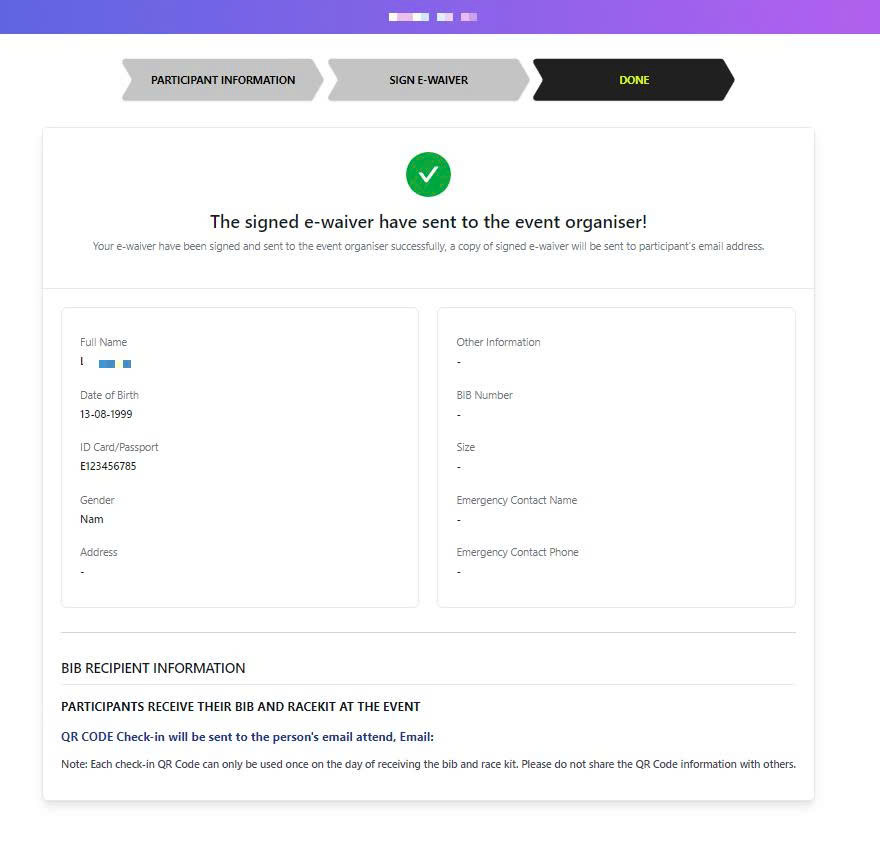
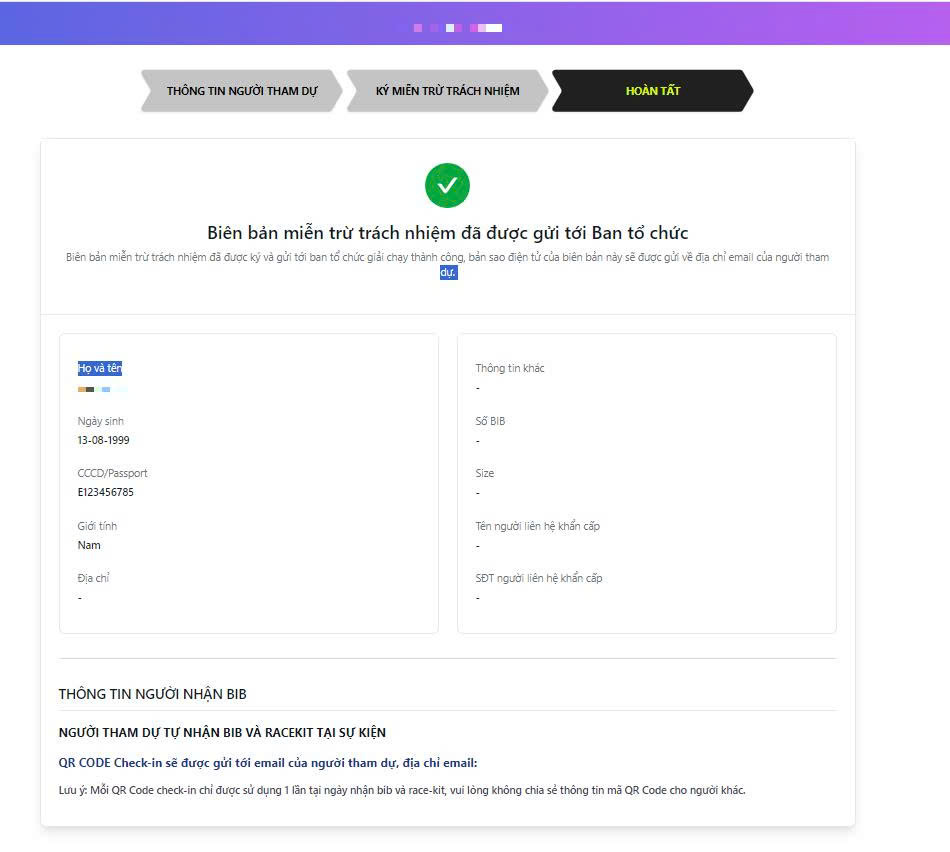
Bước 6: Sau khi ký điện tử, bạn nhấn "Gửi" hệ thống sẽ ghi nhận và gửi biên bản miễn trừ trách nhiệm đến ban tổ chức. Trên màn hình hiển thị thông báo “Biên bản miễn trừ trách nhiệm đã được gửi tới Ban tổ chức”
Case 1: Incorrect email address provided during registration / Email field not provided during registration
Please contact the event organizers and provide the following information to update your correct/new email address:
Information to provide:
- Event name
- ID number (CCCD)
- Phone number
- Correct/new email address to be updated
Case 2: Email information entered correctly when registering
Please find the e-waiver email sent from email: no-reply@racetime.vn and check the Spam or Advertising mailbox
If you do not receive the e-waiver email from RaceTime (or the organizing committee), please follow these steps:
Step 1: Access the link “https://ewaiver.racetime.vn”
Select the event, enter the email address used for registration, and click "Login."
The OTP code will be sent to the registered email within a few minutes
Step 2: Check your email, enter the received OTP code into the system and click “Verify”
Note: The OTP code is valid for 5 minutes, after 5 minutes if the OTP has not been verified, you can click "Resend" to receive a new OTP code
Step 3: After successfully logging in, the system displays a list of registered tickets
Click on “Sign your e-waiver”, the system navigates to the e-waiver screen
(In case an email registers multiple tickets in the event, the screen will display the corresponding number of tickets)
Step 4: Verify participant information
Note: If your information is incorrect, please contact the event organizers or visit the information desk at the event for assistance!
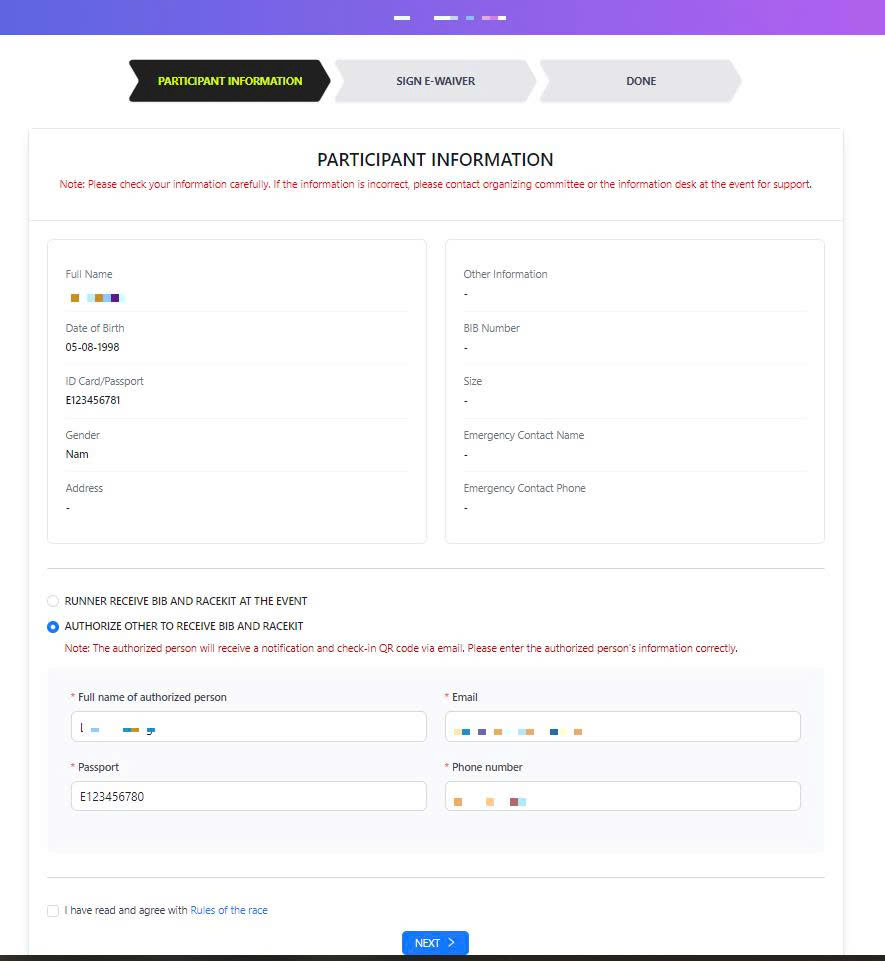
Please select your race kit collection method:
- The participant collects the BIB and RACEKIT at the event.
- Authorized collection: Provide the information of the authorized person.
Step 5: Read the waiver and sign
- The participant’s information is automatically filled in the waiver.
- In the "electronic signature" section, please use your finger, mouse, or stylus to sign.
- You can click "Sign again" to erase and re-sign if needed.
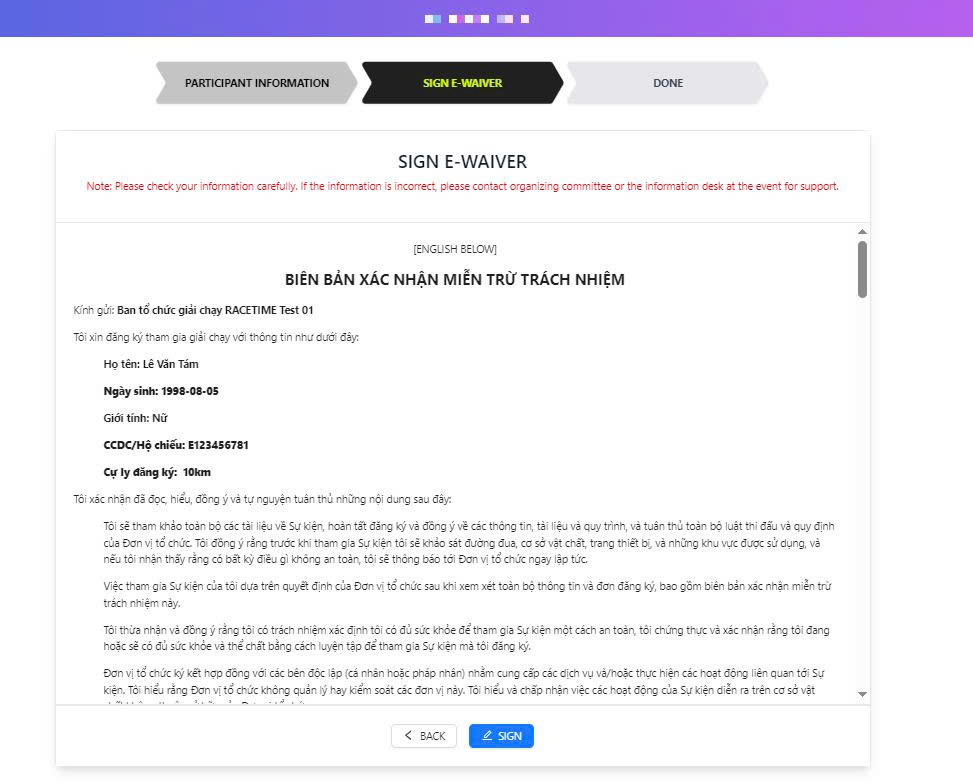
Step 6: Submit the electronic signature
After signing electronically, click "Submit." The system will record and send the waiver to the organizers. A message will appear on the screen stating, “The waiver has been sent to the organizing committee.”